Twin 1
- Role
- Product designer, end to end
- Scope
- The whole product: admin and employee onboarding, privacy and security, the dashboard, Teams and Slack integration, emails, edge cases, help, the design system.
- Platform
- Web app, email, Teams, Slack
Flow
From invite to a live twin
- E Entry Invite email, SSO
- A Org setup Tools, access, security level
- B Org complete Team invited
- C Twin setup Profile, photo, privacy, replies
Decisions
- 01
Security as a choice of three
Open, Contextual or Strict. The detailed rules sit underneath and stay editable.
- 02
The admin sets the frame
Org rules come first. Each employee then builds a twin inside them.
- 03
The twin onboards you
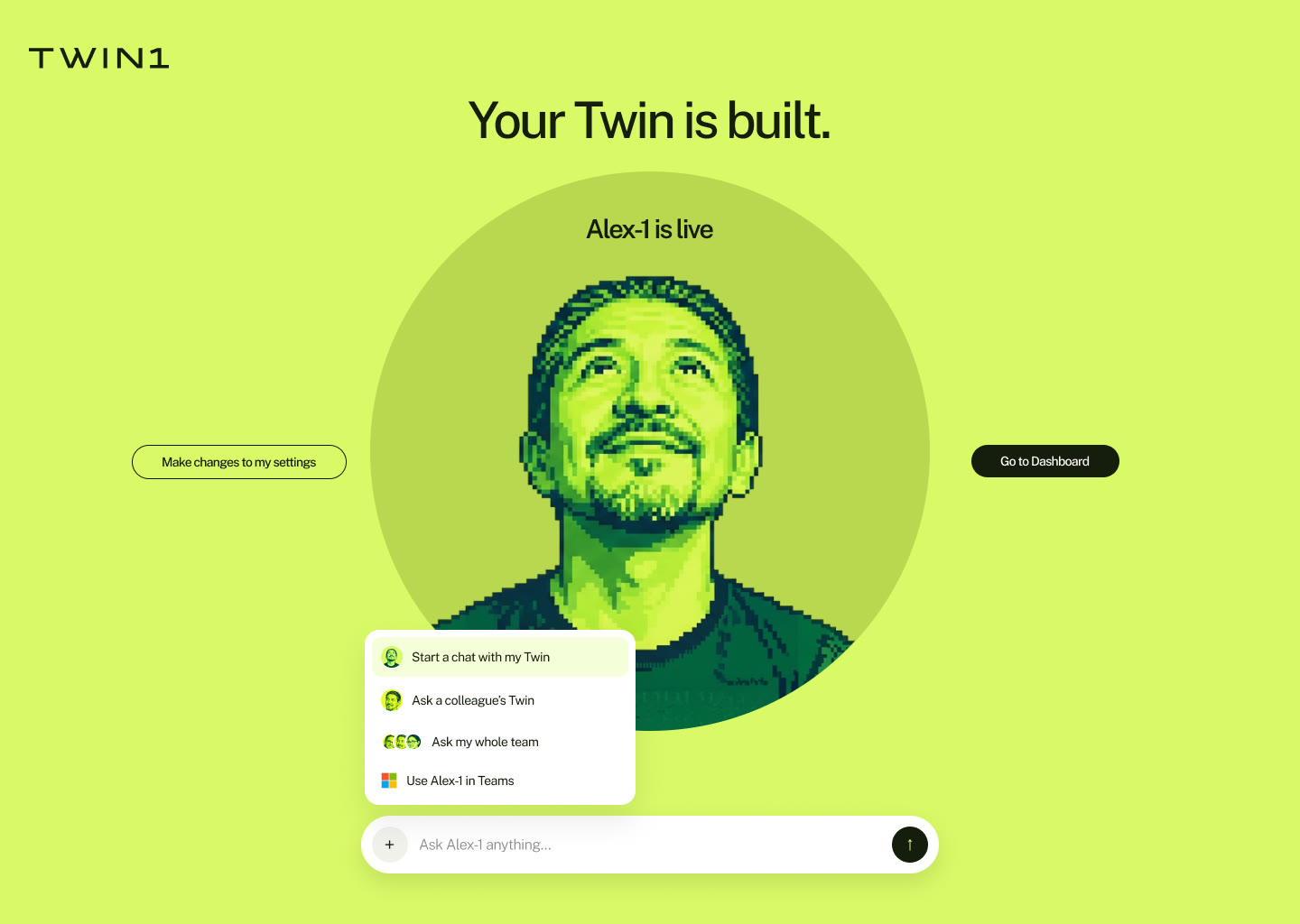
After setup, the twin itself walks the user through connecting Teams or Slack.
Screens
Org setup and twin setup
Flow
Connecting the twin to Teams
Admin self-approval, five steps: email, dashboard, approve and publish, add in Teams, connected.

Design system
Screens never use a raw colour. They use semantic tokens mapped to a small palette, so changing one token restyles every screen that uses it.
- 20raw colours
- 32semantic tokens
- 9type styles
- 9spacing steps
Raw palette
Ink and grey
900
#151E0D 600
#5C5C5C 500
#8B8B8B 300
#C3C3C3 100
#F5F5F5 50
#F9F9F9 white
#FFFFFF Lime
900
#3D5A14 600
#8FB33A 500
#B8D94F 400
#D8FA67 100
#ECFCAD 50
#F5FED9 Purple
700
#4F46A8 600
#5C53BF 100
#F1F1FF 50
#F7F6FF Stone
600
#61665C 100
#EDF0EB 50
#F6F6F1 Semantic tokens
screens use these, never raw coloursText
- text/primary
ink/900 - text/secondary
grey/600 - text/muted
grey/500 - text/inverse
white - text/brand-strong
lime/900 - text/info
purple/700
Surface
- surface/default
white - surface/subtle
grey/50 - surface/muted
grey/100 - surface/warm
stone/50 - surface/brand
lime/400 - surface/brand-soft
lime/100 - surface/brand-subtle
lime/50 - surface/inverse
ink/900 - surface/info
purple/50
Action
- action/primary-bg
ink/900 - action/primary-text
white - action/brand-bg
lime/400 - action/brand-bg-hover
lime/500 - action/brand-bg-pressed
lime/600 - action/secondary-bg
stone/100 - action/ghost-text
grey/600
Border, control, icon
- border/default
grey/100 - border/strong
grey/300 - border/info
purple/100 - control/off
grey/300 - control/on
lime/400 - progress/track
grey/100 - progress/fill
ink/900 - icon/default
ink/900 - icon/muted
grey/500 - icon/info
purple/600
Type styles
Public Sans, Share Tech Mono-
Set up your organisation
-
Set up your organisation
-
Set up your organisation
-
Set up your organisation
-
Set up your organisation
-
Set up your organisation
-
Set up your organisation
-
Set up your organisation
-
Set up your organisation
Spacing
4
8
12
16
24
32
48
64
96
Radius
sm
4 md
8 lg
16 pill
999 Seven layout templates cover every onboarding screen.
